The Control tab — restrictions, power and wallpaper
The Control tab holds the features that restrict what student PCs can do, and that handle power and wallpaper for many PCs at once.
7.1 Internet restrictions
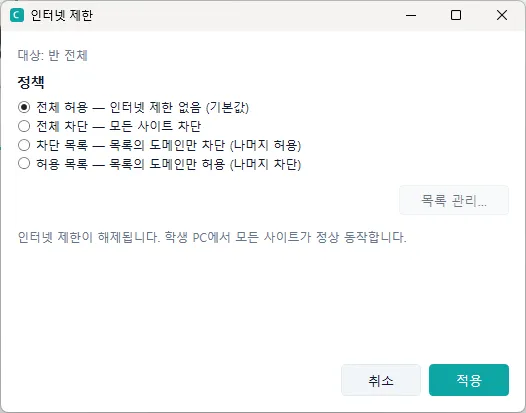
Restricts students’ internet access as a policy. You can choose allow all, block all, an allow list, or a block list. It is designed to hold even if a student changes their DNS or tries to work around it.
- Separately for each student — the target follows the selection rule in chapter 4. For example, you can set block all for student A and a block list for student B; the console remembers this per student and applies the same restriction again when the student PC is switched back on or reconnects. If you apply it on the All tab with nobody selected, the whole class gets the same policy, and students who connect afterwards receive that policy too.
- One set of lists per class — the allow list and the block list are shared by the whole class. When you edit a list, the change reaches the other students using that list straight away.
- If the target students currently have different restrictions, a line at the top of the window says so, and pressing Apply sets them all to the option you chose.
- Add AI tools — when editing the block list, press Add AI tools to add the well-known AI sites (ChatGPT, Copilot, Gemini, Claude and others) in one go. You can remove them one by one afterwards.
- Auto release — choose 10 to 60 minutes (or enter your own value) under “Auto release” and the restriction lifts by itself once that time has passed. If the time passes while the console is closed, it is lifted the next time you start the console.
7.2 Program restrictions
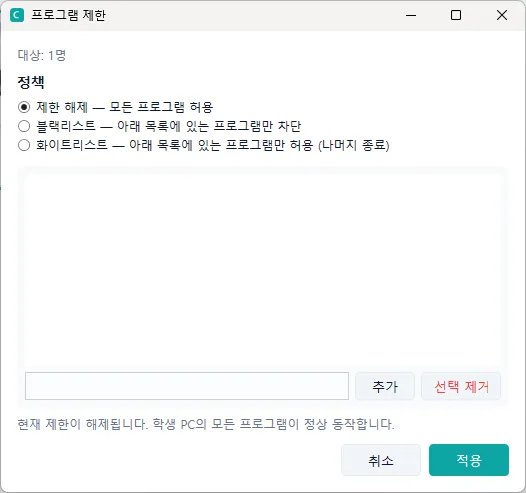
Restricts which programs the selected students can run. The default is a block list, which stops only the programs you name. Switch to an allow list and only the programs you name are permitted, with everything else blocked.
- Like internet restrictions, they are set separately for each student and stay in force even when the student PC is restarted. A “Program restricted” indicator appears on the card of each restricted student.
- The block list and the allow list are separate. When you switch method, the list for that method is shown (a list you wrote for blocking does not turn into an allow list).
- When a program is blocked, a “Your teacher has blocked this program” notice appears briefly on the student’s screen.
- Blocking straight from the screen — right-click a student card and press Block this program: … to add the program that student is using right now to the block list and apply it at once (it is shown when “Collect running process info” under Settings → Monitoring is switched on). If other students are already restricted by the block list, a confirmation appears first, telling you the program will be blocked for them as well.
- Auto release works the same as for internet restrictions. Program restrictions work only on Windows student PCs.
7.3 USB blocking, webcam blocking and speaker mute
All three are toggles — each press turns them on or off — and they apply to the whole class. While one is on, a chip is shown in the status strip, and you can also switch it off with the × on the chip.
| Feature | Description |
|---|---|
| USB blocking | Blocks USB storage devices, card readers and phone (MTP) connections. |
| Webcam blocking | Blocks the webcam and built-in camera. |
| Speaker mute | Forces the sound on student PCs to mute. |

7.4 Power — wake, restart and shut down
| Feature | Description |
|---|---|
| Wake | Wakes a student PC that is switched off (Wake-on-LAN). It works only for a PC that has connected at least once, so its MAC address is registered, and that is configured for WoL. |
| Restart | Restarts the selected student PCs (online only). |
| Shut down | Shuts down the selected student PCs (online only). |
| Caution — restarting and shutting down cannot be undone, and unsaved work may be lost. A confirmation dialog appears before either runs. |
![Restart confirmation dialog — it runs only after you press [OK]](/_astro/fig29.DIfRVdC7_Z1CJuMV.webp)
7.5 Wallpaper and Minimise all windows
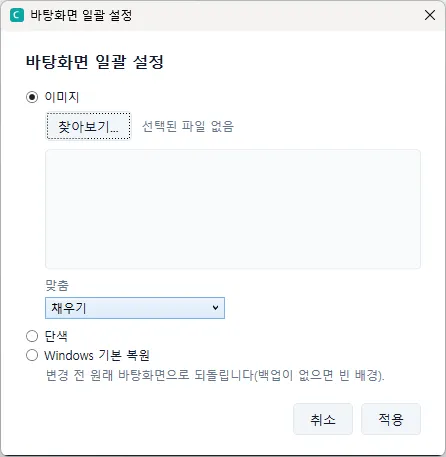
- Wallpaper: changes the desktop wallpaper of selected or all students to a particular image or colour in one go.
- Minimise all windows: minimises every window on the students’ screens so the desktop shows — useful for getting their attention.