Settings
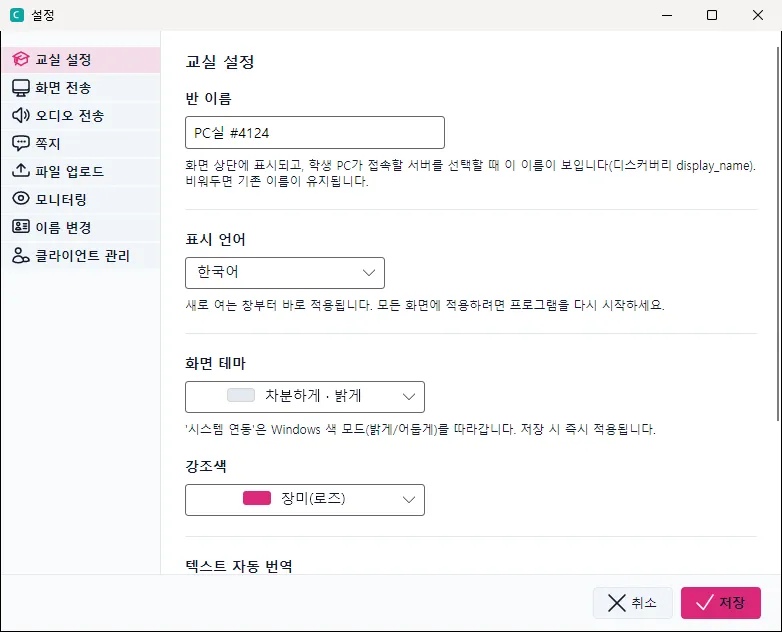
The gear (settings) button at the right of the title bar opens the settings window.
| Category | What you can adjust |
|---|---|
| Classroom | The class name (shown in the title bar). |
| Screen sharing | Delivery method (high quality / low bandwidth / software), resolution, refresh interval, and whether simultaneous delivery (network saving) is used. |
| Full view | Quality mode (standard / high quality / software). |
| Monitoring | Whether information about the programs students are currently running is collected. |
| Messages | Allow student→teacher messages, allow student↔student messages, allow attachments. |
| Rename | How long the name prompt waits for a reply. |
| Audio sharing | Delivery mode (plain / subtitles / translation) and speech recognition API settings. |
| Client management | Hiding the uninstall entry, and similar options. |
| Language | The console’s display language (Korean by default, English and others). Changing it may prompt you to restart. |
| Theme | Light / dark / follow the system setting. |
10.1 Screen sharing settings in detail
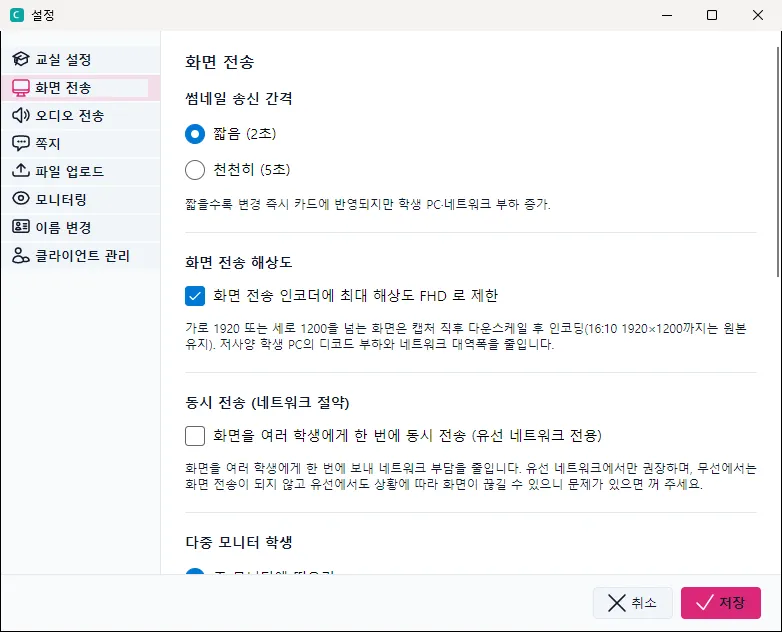
These are the entries in the Screen sharing tab, the one you are most likely to adjust. It covers the basic options — send interval, resolution and simultaneous delivery (network saving) — as well as the video processing method used for teacher→student sharing and student→teacher full view separately.
| Item | Description |
|---|---|
| Thumbnail interval | How often the preview on a student card refreshes. Choose short (2 seconds) or slow (5 seconds). A shorter interval shows changes on the card sooner, at the cost of more load on the student PCs and the network. |
| Screen sharing resolution | With “limit the encoder to Full HD” switched on, a QHD or 4K screen is downscaled to 1920×1080 right after capture and then encoded. Most student displays are Full HD or smaller, so leaving this on is recommended. |
| SmartWorkStation performance | Shown only in classrooms that use SmartWorkStation hardware and its product, and only while terminals are connected. Limits the FPS of Desktop share and Sample broadcast to between 5 and 30. Left empty, it is 30. The lower you set it, the lighter the load on the server and the less smooth the motion on screen. It applies from the next broadcast. |
| Simultaneous delivery (network saving) | Sends one screen to many students at once, reducing the load on the network. It is recommended only on wired networks. On wireless it will not work, and even on wired networks the picture may stutter depending on conditions — switch it off if you see problems. |
The video processing method changes both quality and load depending on whether the GPU is used. You choose it separately for screen sharing (teacher→student) and full view (student→teacher).
| Direction | Method | Description |
|---|---|---|
| Screen sharing (teacher→student) | Low bandwidth (recommended) | Uses the GPU and automatically sends less data when the screen changes little. More students can receive at once on the same wireless access point. |
| Screen sharing (teacher→student) | Keep quality | Uses the GPU and sends at a constant rate regardless of what is on screen. Quality stays even. |
| Screen sharing (teacher→student) | Software (no hardware acceleration) | Uses only the CPU, without the GPU. Try this when a graphics driver problem stops screen sharing from working. (It applies automatically on PCs without a GPU.) |
| Full view (student→teacher) | Keep quality (recommended) | Uses the student PC’s GPU and sends at a constant rate. As this is a one-to-one view, keeping the load off the student PC matters most. |
| Full view (student→teacher) | Software (no hardware acceleration) | Uses only the student PC’s CPU, without its GPU. Try this when full view does not work properly. (The student’s own work may slow down briefly.) |